Split Keys
You create a full validator key, break it into encrypted pieces (shares), and give them to a group of SSV operators who run the validator for you. You keep the full key.
This flow suits two kinds of scenarios:
- You run the SSV nodes yourself — you, or a small group, run them across several machines.
- You'd rather not run any servers — you pick ready-made operators from the SSV marketplace and pay them in SSV tokens, and they run your validators.
Select Operators
-
In the SSV webapp, open Run a Distributed Validator: click Distribute Validators on the "Join the SSV Network" landing (new accounts), or go to Validator Clusters → Create a cluster if you already have an operator or cluster.
-
Select Generate new key shares
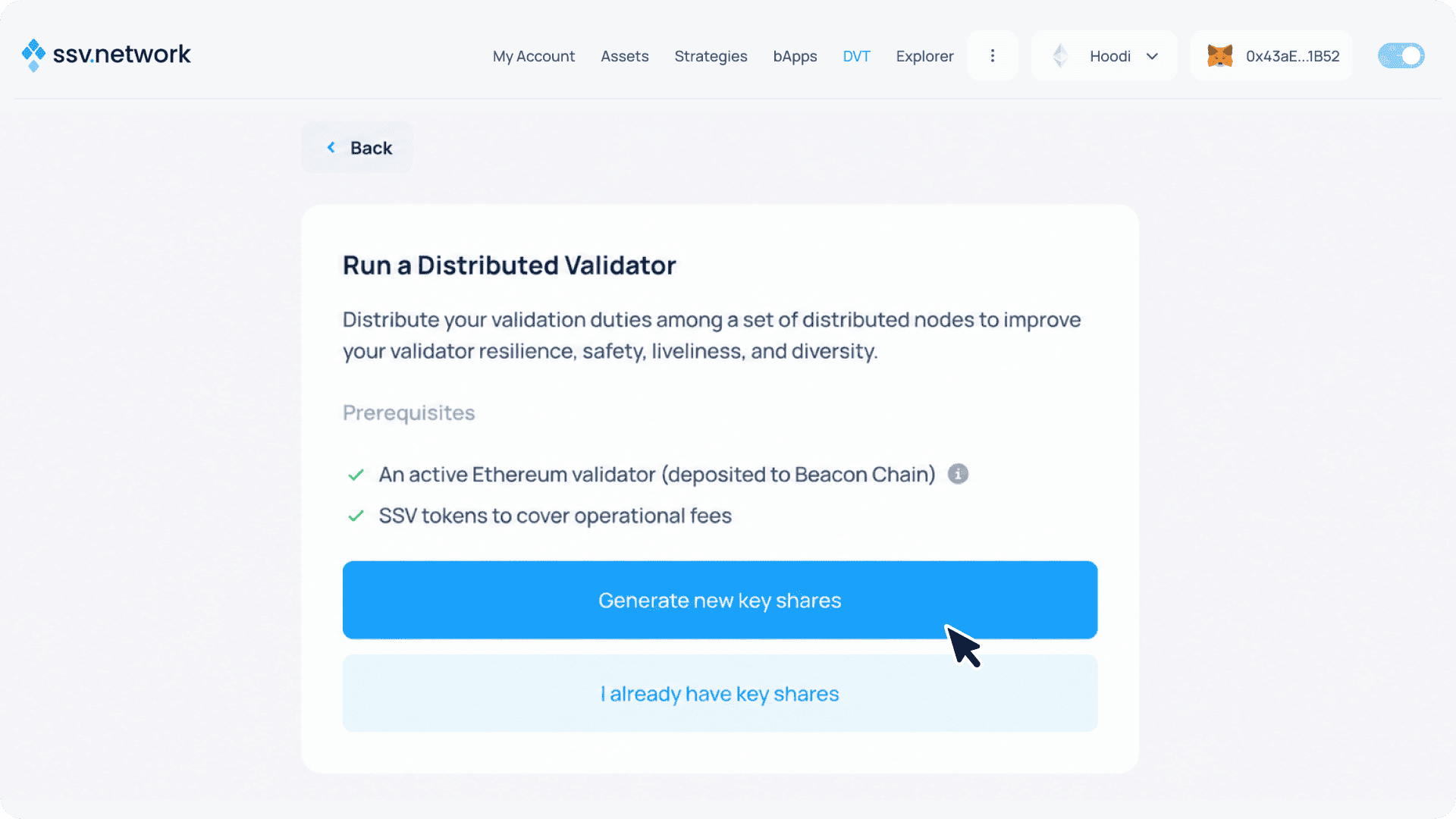
- Choose the cluster size and select your operators, then click Next. Search for an operator by ID or name.
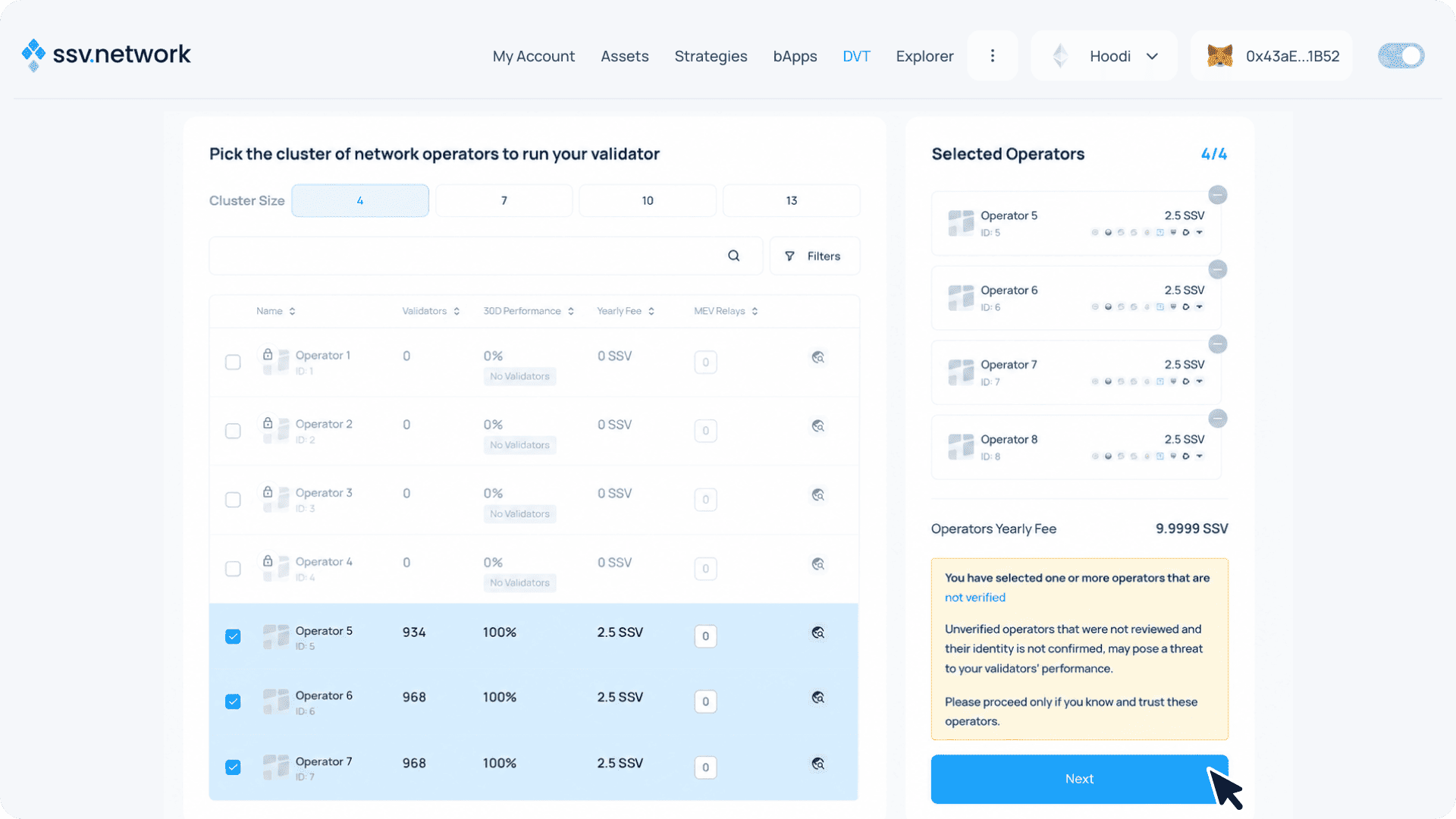
 Private Operators Must Whitelist You
A padlock icon next to an operator means it's private (permissioned). You can only select it if the wallet you're creating the cluster with is whitelisted in that operator's settings. For your own operators, whitelist your wallet; for third-party private operators, ask them to whitelist you.
Generate Key Shares
- Download the ssv-keys CLI for your system from the releases page ↗
# macOS
curl -L https://github.com/ssvlabs/ssv-keys/releases/latest/download/ssv-keys-mac -o ssv-keys
chmod +x ssv-keys  # Make the file executable

# Linux
curl -L https://github.com/ssvlabs/ssv-keys/releases/latest/download/ssv-keys-linux -o ssv-keys
chmod +x ssv-keys
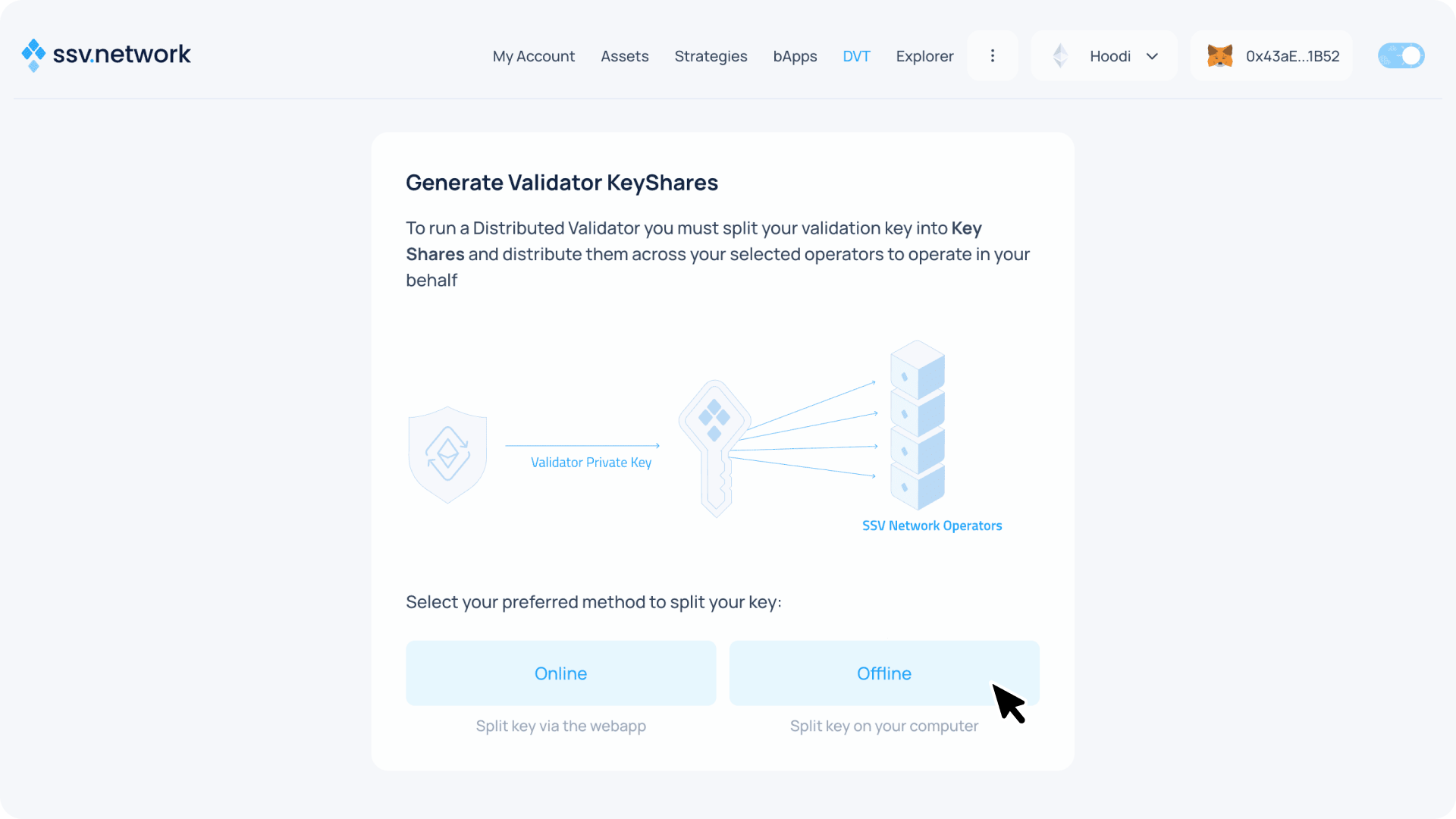
- Select the Offline method to split your key
- Select Command Line Interface, copy the command provided with all values pre-filled (operator keys, IDs, your wallet address, and nonce), and press Next
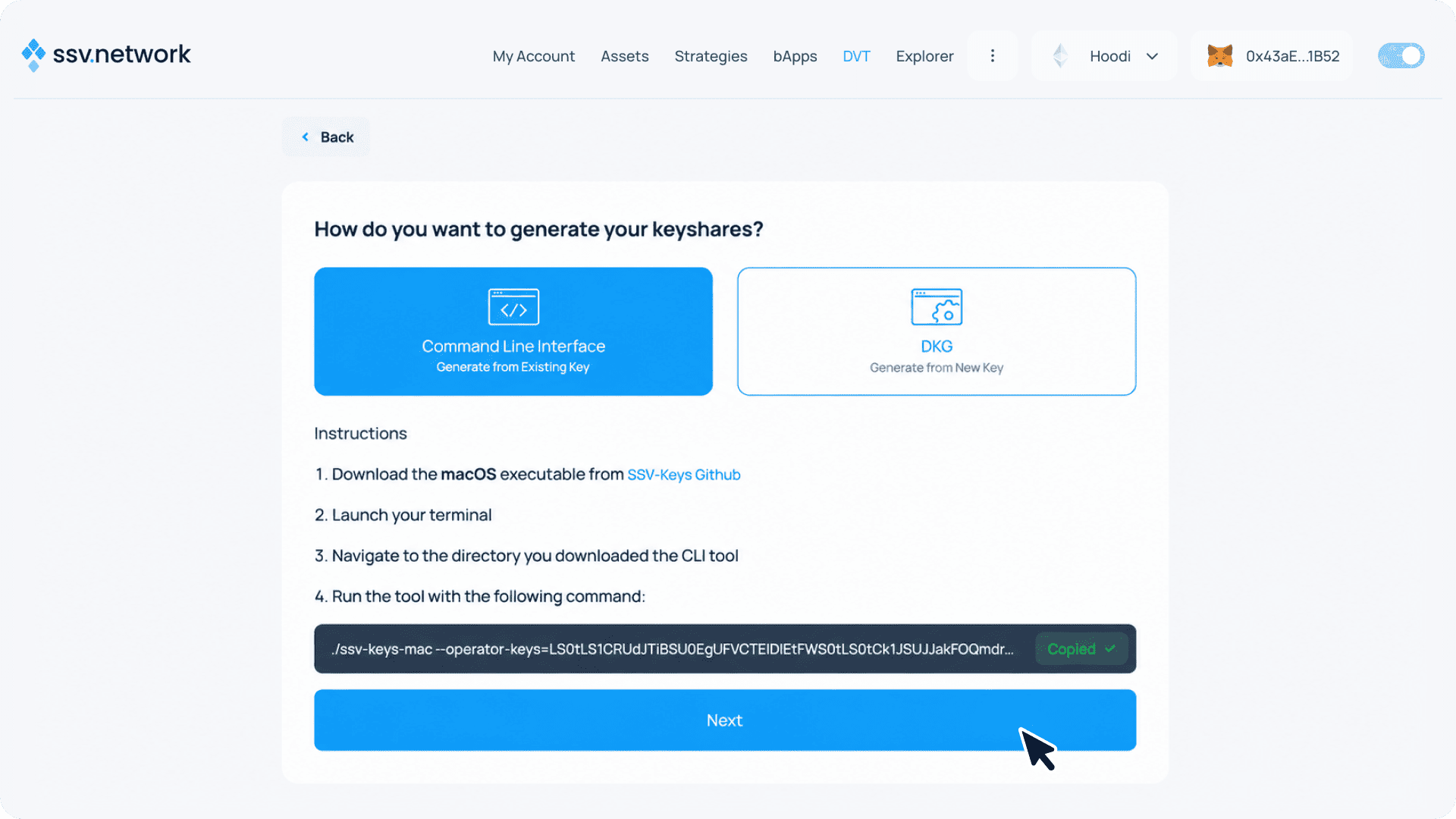
- Run the copied command in your terminal
./ssv-keys-mac --operator-keys=LS0tLS1CRUdJTiB... --operator-ids=5,6,7,8 --owner-address=0xf27...10aD9 --owner-nonce=0
When prompted, provide:
✔ Enter the path to your keystore file or directory containing multiple keystore files … /Users/user/.stakewise/0x43aee97f4122b4982915bcfd3d6acd0758fd1b52/keystores/keystore-m_12381_3600_0_0_0-1763993024.json
✔ Provide the keystore file password … ******************** <- type keystores password here
✔ Please provide a target path to generate the output to … /Users/user/ssv-keys/

1/1 ✅ keystore-m_12381_3600_0_0_0-1763993024.json

1 of 1 keystore files successfully validated. 0 failed validation

Generating Keyshares file, this might take a few minutes do not close terminal.
Key distribution successful! Find your key shares file at:
/Users/user/ssv-keys/keyshares-1763995534.json
This splits your validator key into encrypted shares using Shamir's Secret Sharing (SSS), with each share encrypted for a specific operator.
Register Validator
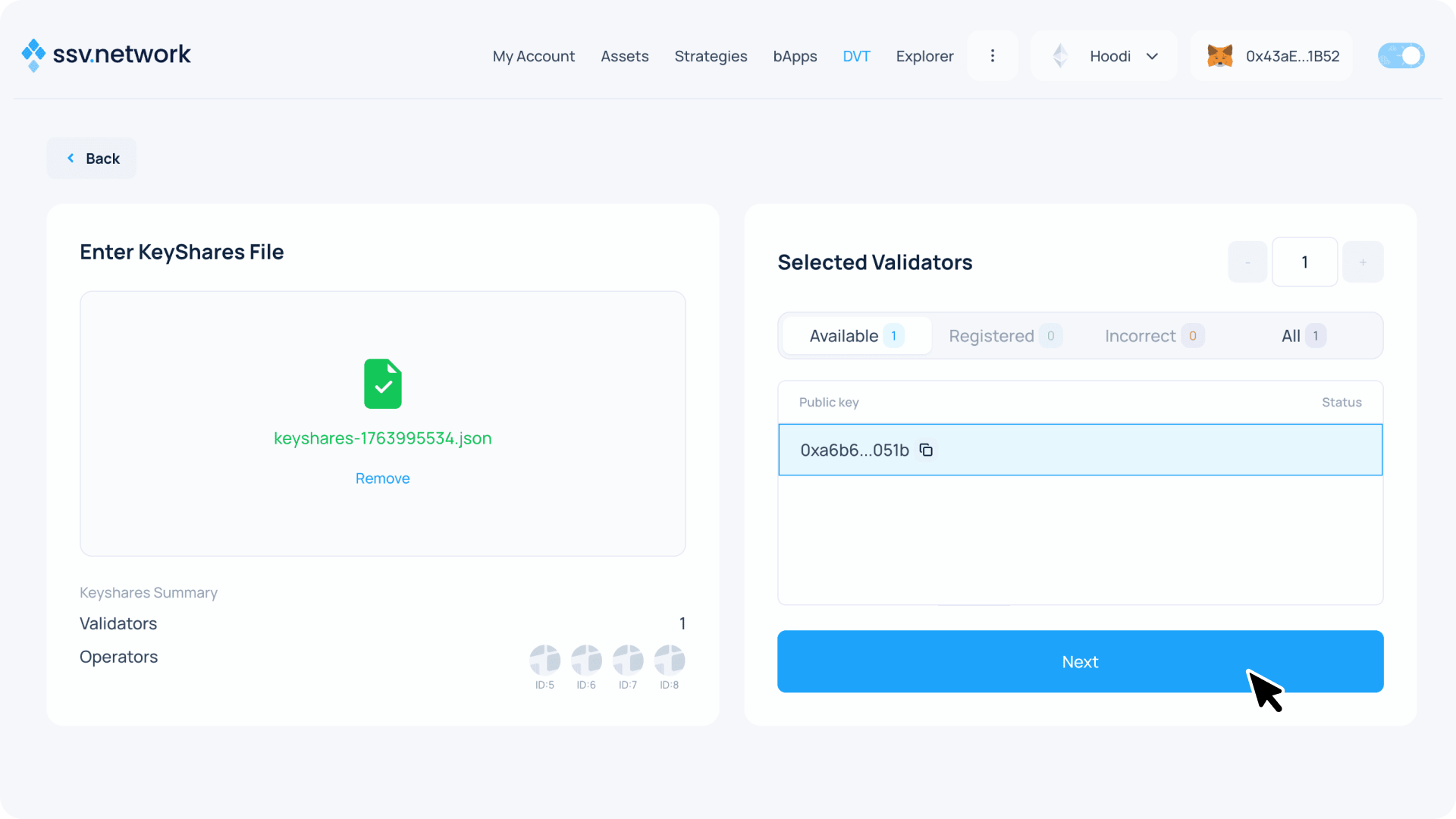
- Upload the generated KeyShares File
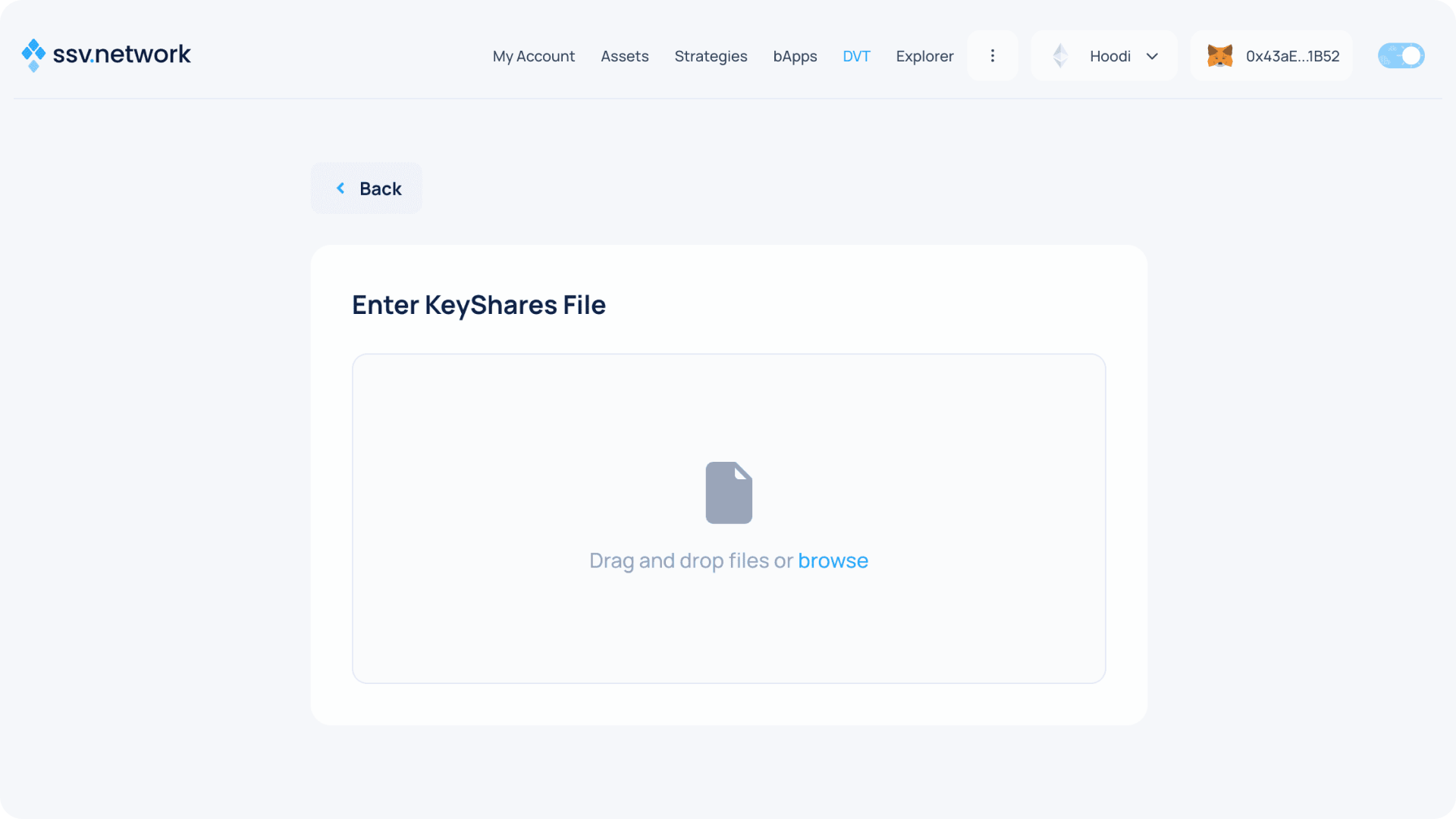
- Click Next
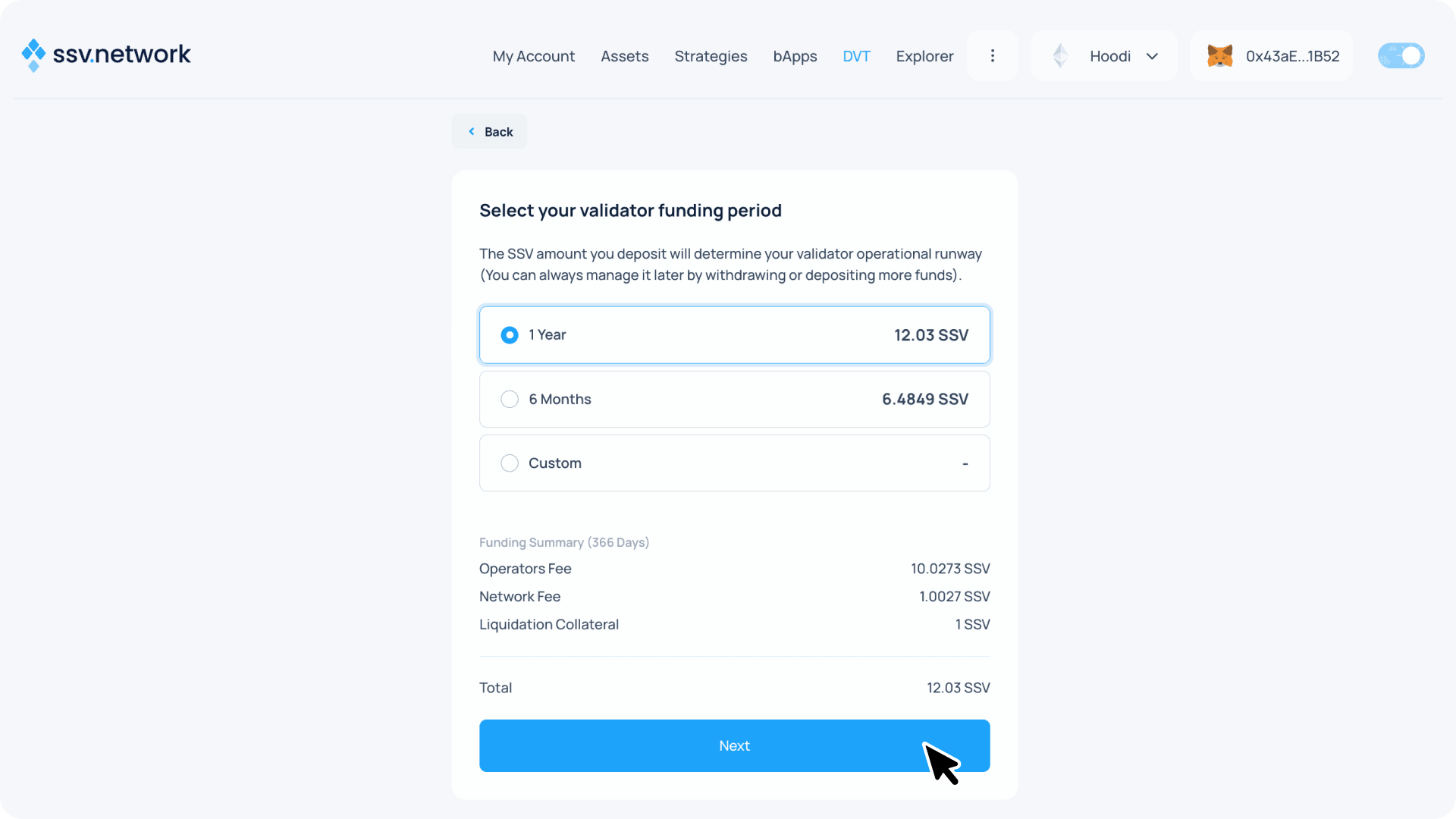
- Choose your funding period. The required SSV amount depends on your selected operators' fees and duration.
- Review cluster fees and acknowledge the risks, then click Next.
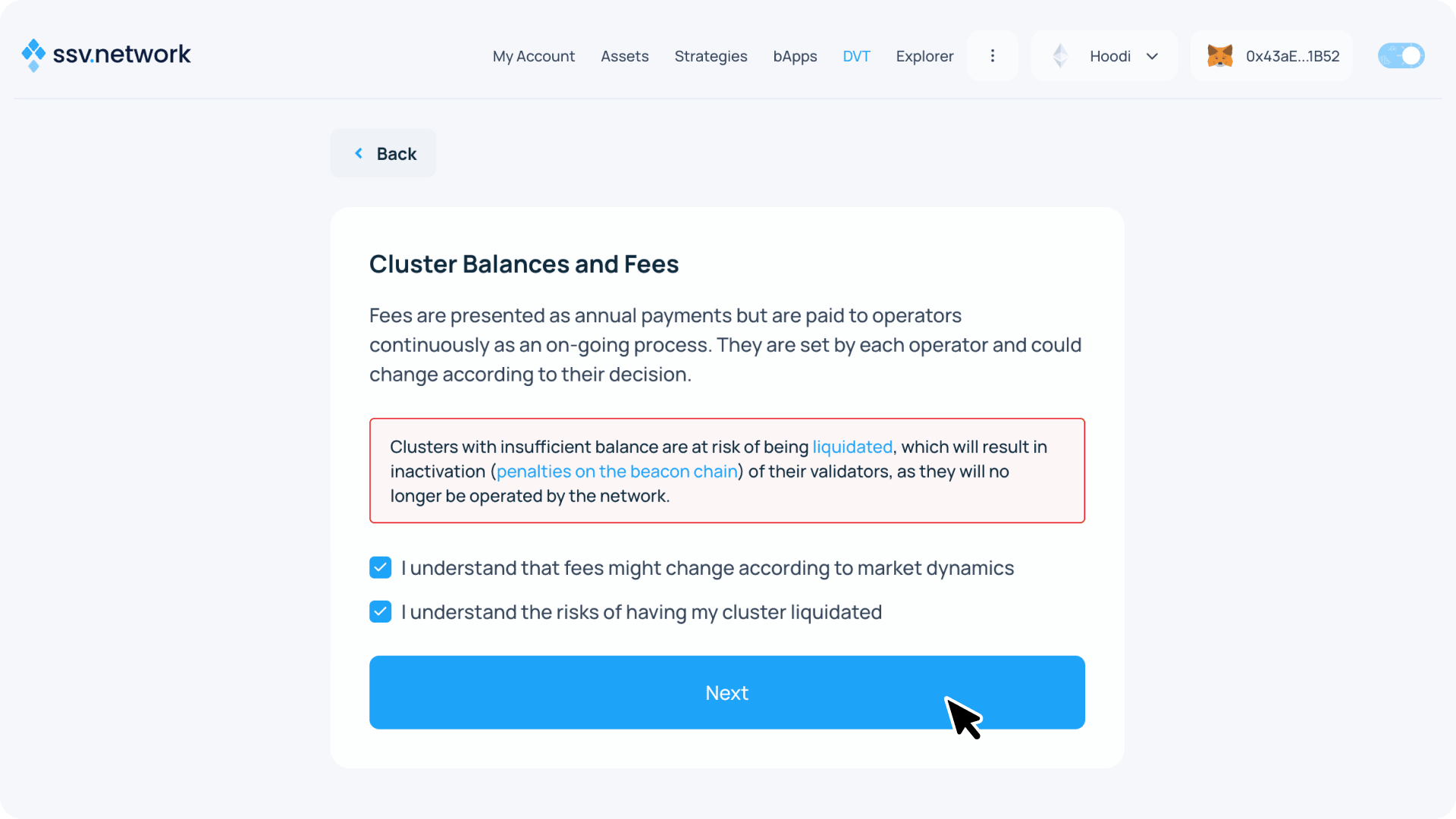
Liquidation Risk
Understand how fees are managed ↗ and keep your cluster balance above the Liquidation Collateral threshold. If liquidated, your validators will stop being operated, which could lead to penalties on the Beacon Chain. Learn more ↗
- Acknowledge the risk and click Next
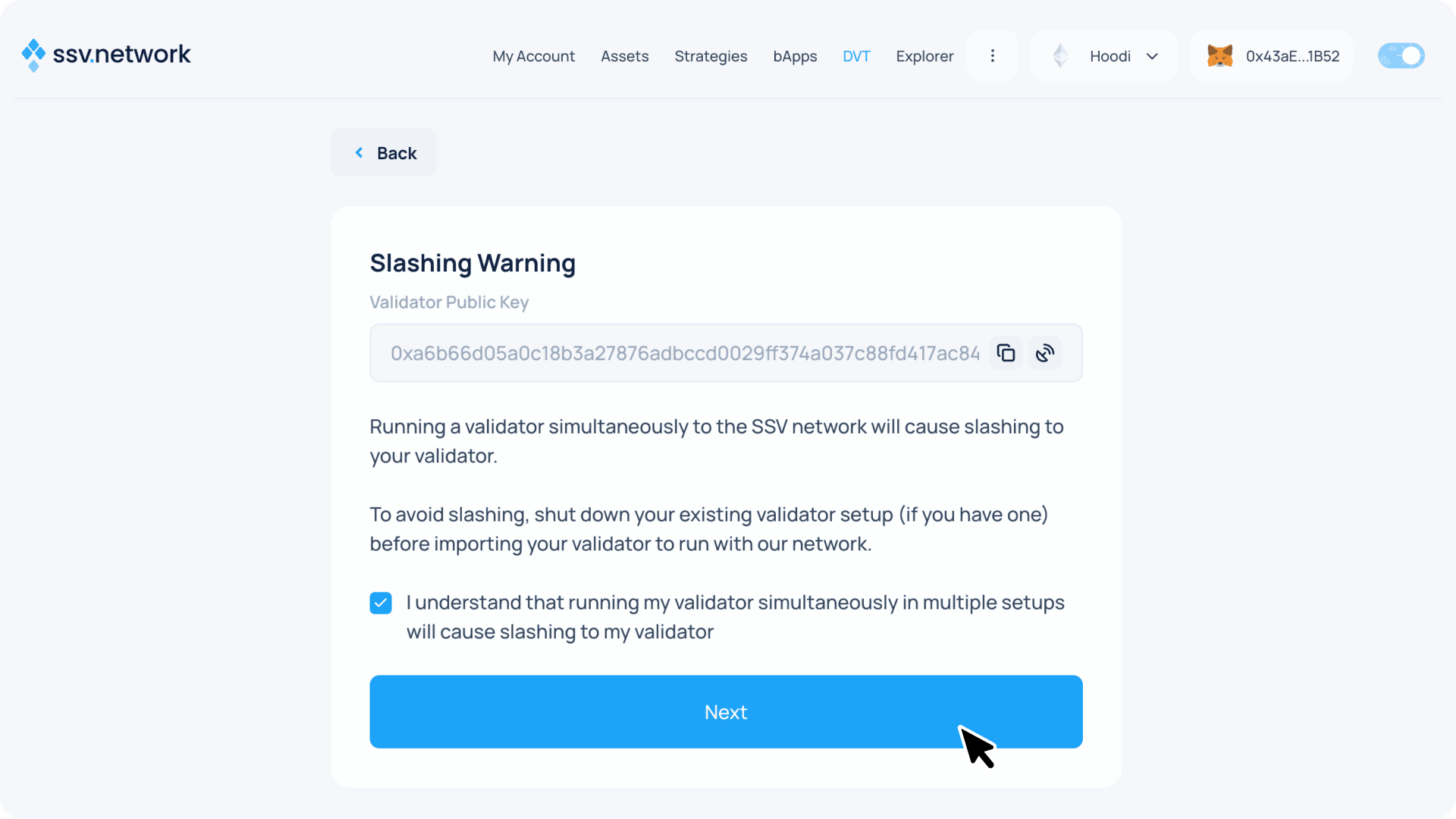
Critical: Stop Other Validator Clients
Before this final registration, shut down any existing validator client running this key. Once the SSV operators start signing with their shares, running the same key elsewhere will result in slashing.
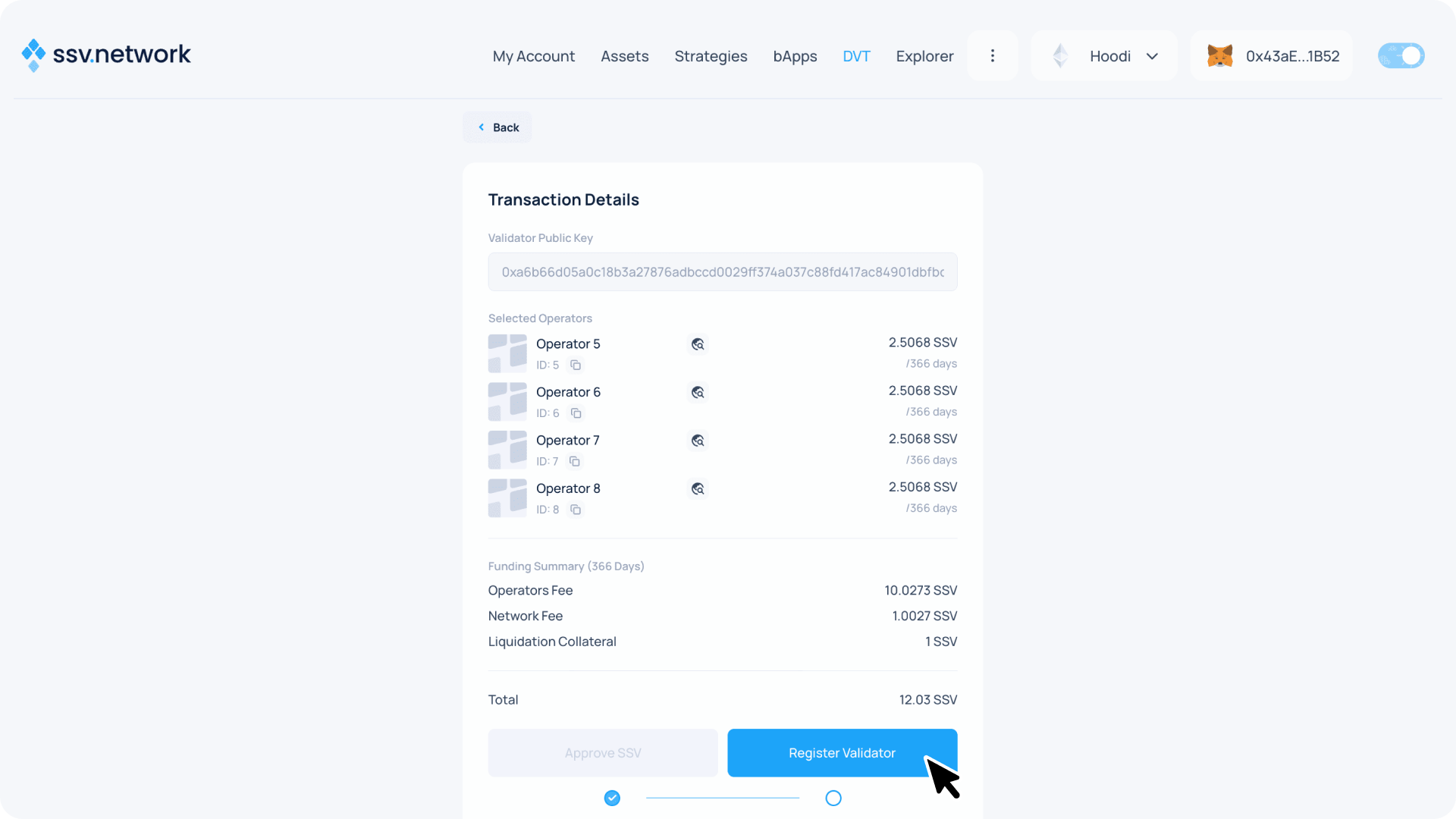
- The next screen presents a summary of your validator setup.
Review transaction details and complete two transactions:
- Click Approve SSV and confirm in your wallet
- Click Register Validator and confirm in your wallet
- Congratulations! 🎉 Your validator is now registered on the SSV Network and being managed by your selected operators.