SSV Setup
SSV Network ↗ is a permissionless DVT network that distributes validator management across a cluster of non-trusting nodes running on multiple machines. The result is active redundancy, fault tolerance, and non-custodial operation.
Each operator runs an SSV node — the software that implements the SSV protocol and communicates with the network's smart contracts. It connects to the operator's consensus and execution clients, receives encrypted key shares, and performs validator duties (attestations and proposals) using only a share of the validator key: a threshold of shares is enough to produce a valid signature.
You can run your validators on the SSV Network in two ways, which differ in how the validator key is created:
- Split Keys — generate a full validator key, then split it into shares and distribute them to the operators. The Operator Service has access to the full key and uses it to register new validators.
- DKG Ceremony — SSV operators generate the key shares together through a ceremony. The full private key is never constructed on any machine, at any point in its lifecycle. The Operator Service has no access to the key shares. The registration of the new validators happens through the DVT Relayer.
Become SSV Operator
If you run your own infrastructure and want to benefit from SSV DVT, you must become an SSV operator.
Becoming an SSV operator involves generating an operator key, running the node software, and registering the operator through the SSV webapp ↗.
Prerequisites
Before proceeding, ensure you have the following:
- Install Docker Engine ↗. Verify it is running:
docker ps
CONTAINER ID   IMAGE     COMMAND   CREATED   STATUS    PORTS     NAMES
Step 1: Generate Operator Keys
The most secure way to run your Operator node is to generate an encrypted key pair. This way, your Public Key and Secret Key will be encrypted with a password of your choosing.
Password File
You will need to create a file named password containing the password you choose for your Secret Key:
echo "<MY_OPERATOR_PASSWORD>" >> password
Key Pair Generation and Encryption
The node Docker image will generate and encrypt keys with a password you provide:
docker run --name ssv-node-key-generation \
  -v "$(pwd)/password":/password \
  -v "$(pwd)":/data \
  -it "ssvlabs/ssv-node:latest" \
  sh -c "/go/bin/ssvnode generate-operator-keys --password-file=/password && cp /encrypted_private_key.json /data/" \
  && docker rm ssv-node-key-generation
The Docker command outputs encrypted_private_key.json to your current directory:
encrypted_private_key.json
{
  "checksum": { ... },
  "cipher": { ... },
  "kdf": { ... },
  "pubkey": "LS0tLS1CRUdJTiBSU0EgUFVCTElDIEtFWS0tLS0tCk1JSUJJakFOQmdrcWhraUc5dzBCQVFFRkFBT0NBUThBTUlJQkNnS0NBUUVBNDF5..."
}
The file contains your operator's RSA key pair:
- Private key — encrypted with your password; the SSV node uses it to decrypt its assigned validator key shares.
- Public key (
pubkey) — stored in plaintext; you use it to register the operator on SSV.
To print the pubkey, run:
grep -o '"pubkey":"[^"]*"' encrypted_private_key.json
 Back Up Your Operator Key
Back up encrypted_private_key.json and password on a separate device. If either file is lost, you will permanently lose access to your Operator.
Step 2: Create Configuration File
Copy the config.yaml file below and replace the placeholders with your real values. Make sure your ETH1Addr endpoint uses WebSocket, not HTTP.
config.yaml
global:
  # Console output log level
  LogLevel: info

  # Debug logs file path
  LogFilePath: ./data/debug.log

  # Number of log files preserved, 500MB each (time duration depends on number of validators and other factors).
  # Roughly equates to half a day.
  # Increase if you want to preserve log files for longer. This would require more disk space
  LogFileBackups: 10

db:
  # Path to a persistent directory to store the node's database.
  Path: ./data/db

ssv:
  # The SSV network to join to
  # Mainnet = Network: mainnet (default)
  # Hoodi = Network: hoodi
  # Sepolia = Network: sepolia
  Network: mainnet

  ValidatorOptions:
    # Block proposals are by default controlled by Beacon Node.
    # Requires the connected Beacon node to be MEV-enabled.
    # Please see https://docs.ssv.network/operators/operator-node/setup-sidecars/configuring-mev

eth2:
  # HTTP URL of the Beacon node to connect to.
  BeaconNodeAddr: <ETH2_NODE> # e.g. http://example.url:5052

  # Enables improved attestation accuracy by scoring responses from multiple Beacon nodes.
  # Will have no effect with only 1 endpoint.
  WithWeightedAttestationData: false

  # Enables parallel Attestation and Sync Committee submissions to multiple Beacon nodes.
  WithParallelSubmissions: false

eth1:
  # WebSocket URL of the Eth1 node to connect to.
  ETH1Addr: <ETH1_WEBSOCKET_ADDRESS> # e.g. ws://example.url:8546/ws

p2p:
  # Optionally provide the external IP address of the node, if it cannot be automatically determined.
  # HostAddress: 192.168.1.1

  # Optionally override the default TCP & UDP ports of the node.
  # TcpPort: 13001
  # UdpPort: 12001

KeyStore:
  PrivateKeyFile: <ENCRYPTED_PRIVATE_KEY_JSON> # e.g. ./encrypted_private_key.json
  PasswordFile: <PASSWORD_FILE> # e.g. ./password

# Enables Doppelganger Protection for validators, see https://github.com/ssvlabs/ssv/blob/v2.3.0/doppelganger/README.md
EnableDoppelgangerProtection: false

# This enables monitoring at the specified port, see https://docs.ssv.network/operators/operator-node/monitoring/
MetricsAPIPort: 15000
# This enables node health endpoint for troubleshooting, see https://docs.ssv.network/operators/operator-node/maintenance/troubleshooting
SSVAPIPort: 16000
Step 3: Start the Node
Potential Slashing
Do not run multiple SSV Node instances with the same operator keys. This does not improve resiliency and could lead to validator slashing.
To start your node, run the following Docker command in the same folder you created the config.yaml file in the previous step:
docker run --restart unless-stopped --name ssv_node -e \
CONFIG_PATH=/config.yaml -p 13001:13001 -p 12001:12001/udp -p 15000:15000 -p 16000:16000 \
-v "$(pwd)/config.yaml":/config.yaml \
-v "$(pwd)":/data \
-v "$(pwd)/password":/password \
-v "$(pwd)/encrypted_private_key.json":/encrypted_private_key.json \
-it "ssvlabs/ssv-node:latest" make BUILD_PATH="/go/bin/ssvnode" start-node
It launches the SSV node, which connects to your beacon and execution clients, joins the SSV network, and streams its logs to your terminal as it starts up and begins performing duties.
 Running in Background
The logs let you verify startup. Press Ctrl-C to detach — --restart unless-stopped brings the node back up on its own. To start detached in the first place, add -d after docker run.
Peer-to-peer Ports Configuration and Firewall
On your firewall, open the ports set in the run command: 13001 TCP and 12001 UDP for peer-to-peer traffic, plus 15000 TCP (metrics) and 16000 TCP (health). To use different ports, change them in both config.yaml and the run command.
Best Practices
A validator's performance depends on its participation rate — a function of your setup configuration, adequate hardware resources ↗, which scale with the number of validators, and the other best practices ↗ SSV recommends.
Step 4: Register on SSV Network
Before your operator can be selected for a cluster, it must be registered on SSV Network. Registration adds it to the registry and gives it an operator ID — the identifier you use to select it when distributing a validator to a cluster.
You'll need your operator public key pubkey (from Step 1) and a wallet — the wallet you register with becomes the operator's only management address. Follow these steps using the SSV Network web app ↗:
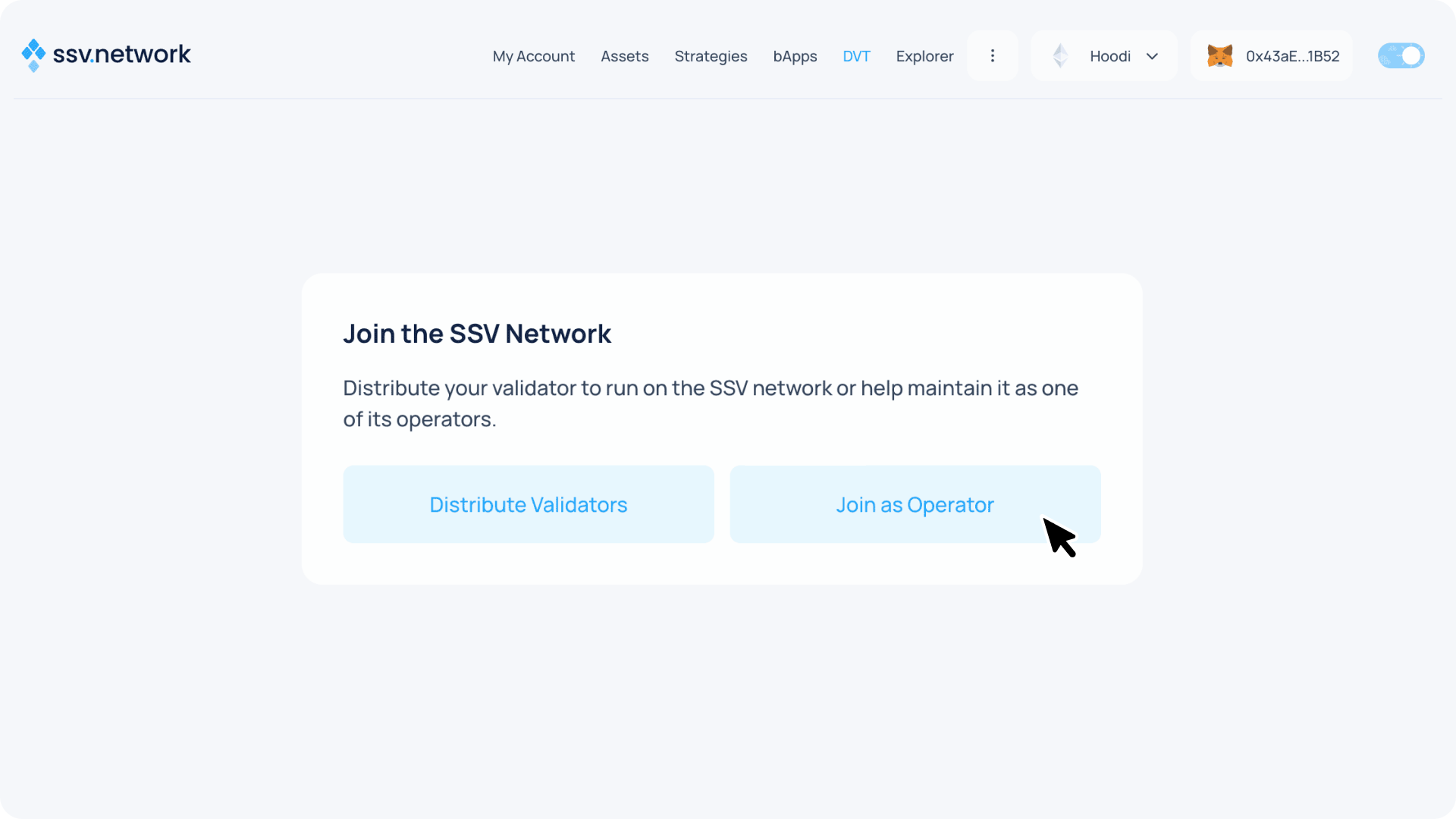
- Click Join As Operator
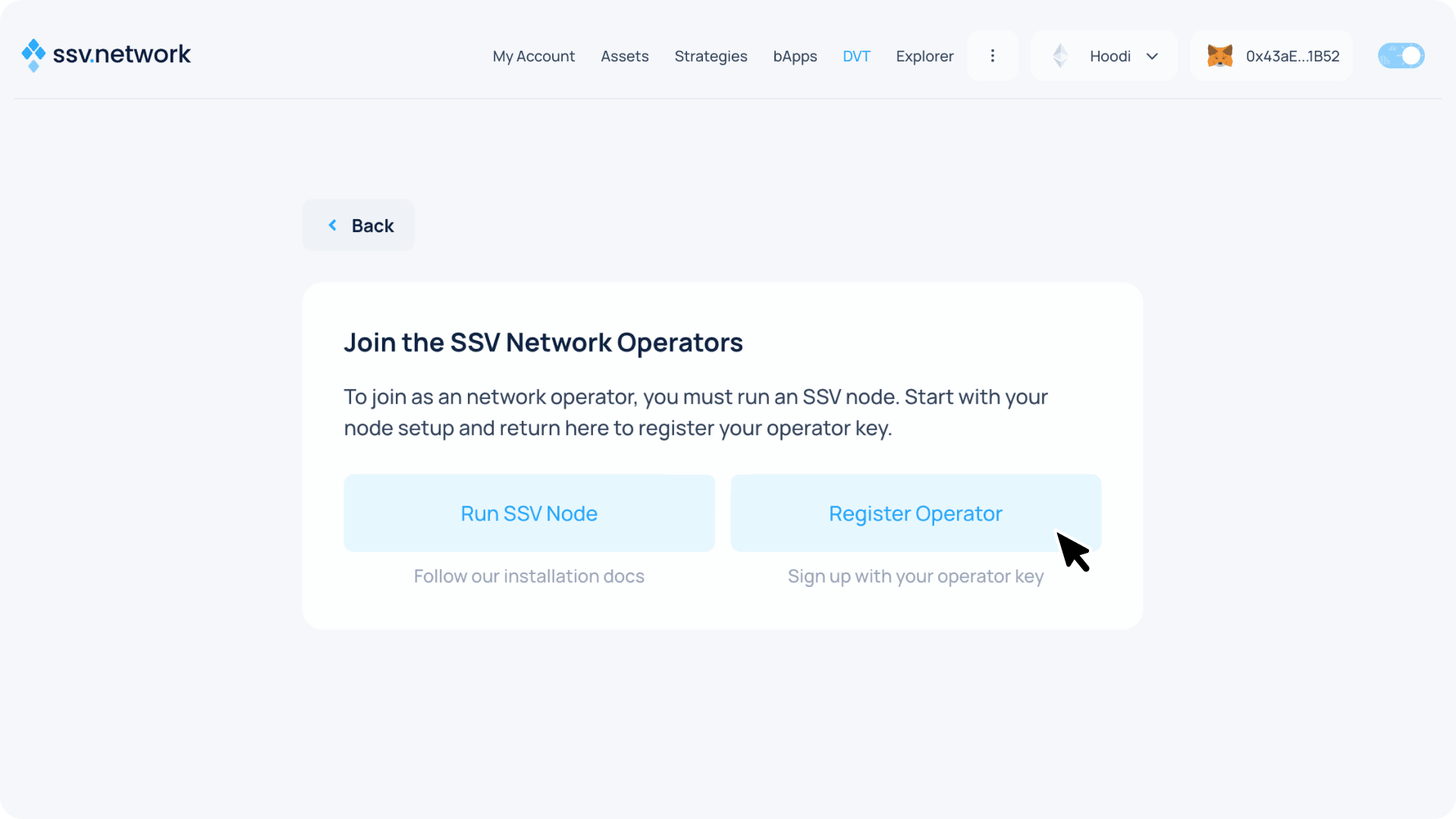
- Click Register Operator
- Paste your Operator Public Key and click Register Operator
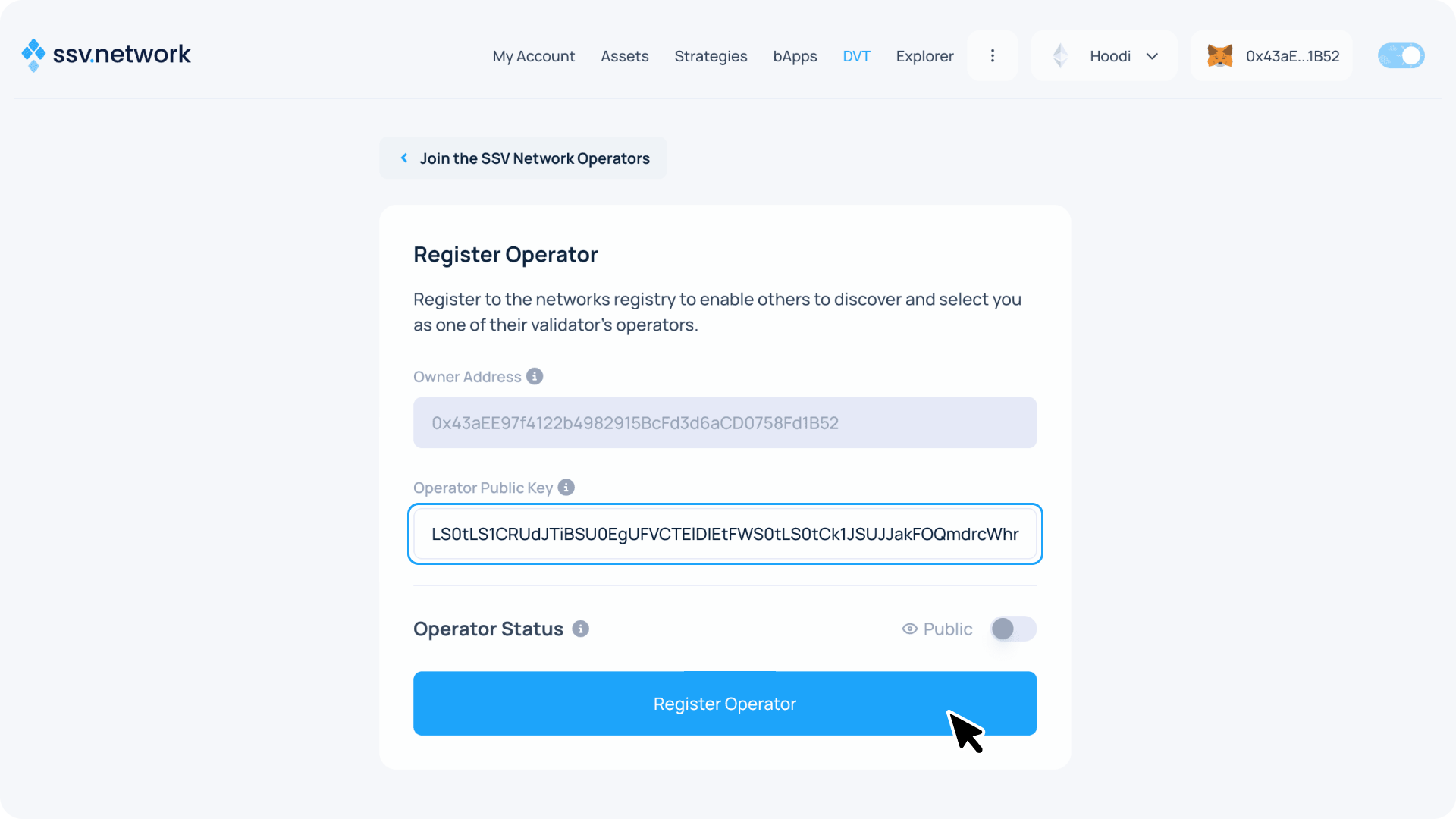
 Private vs. Public
The operator you registered is meant to run your Vault's validators alongside the other cluster members. By default an operator is Public — anyone can register validators to it. To keep other stakers out, switch Operator Status to Private (permissioned ↗): then only the wallets you whitelist can register validators to it — i.e. assign it a share of a distributed validator.
- Set Operator Annual fee and click Next
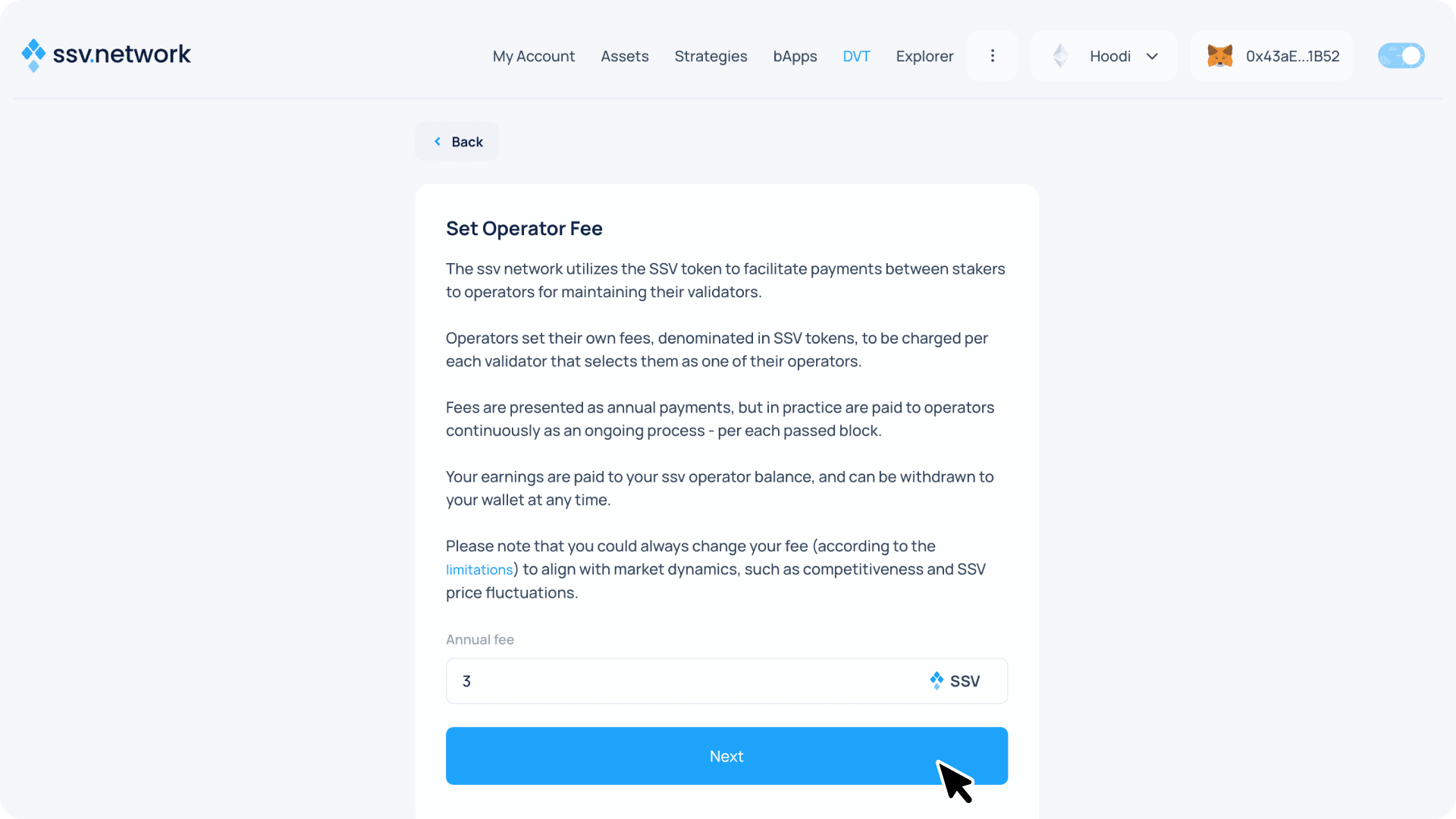
Operator Fee
Your fee (in SSV tokens) is charged per validator that selects you, and earnings accumulate in your operator balance for you to withdraw at any time. You can change it later: decreases apply immediately, increases go through a waiting period that protects stakers ↗. If you only run your own Vault's validators, the fee is money you pay yourself.
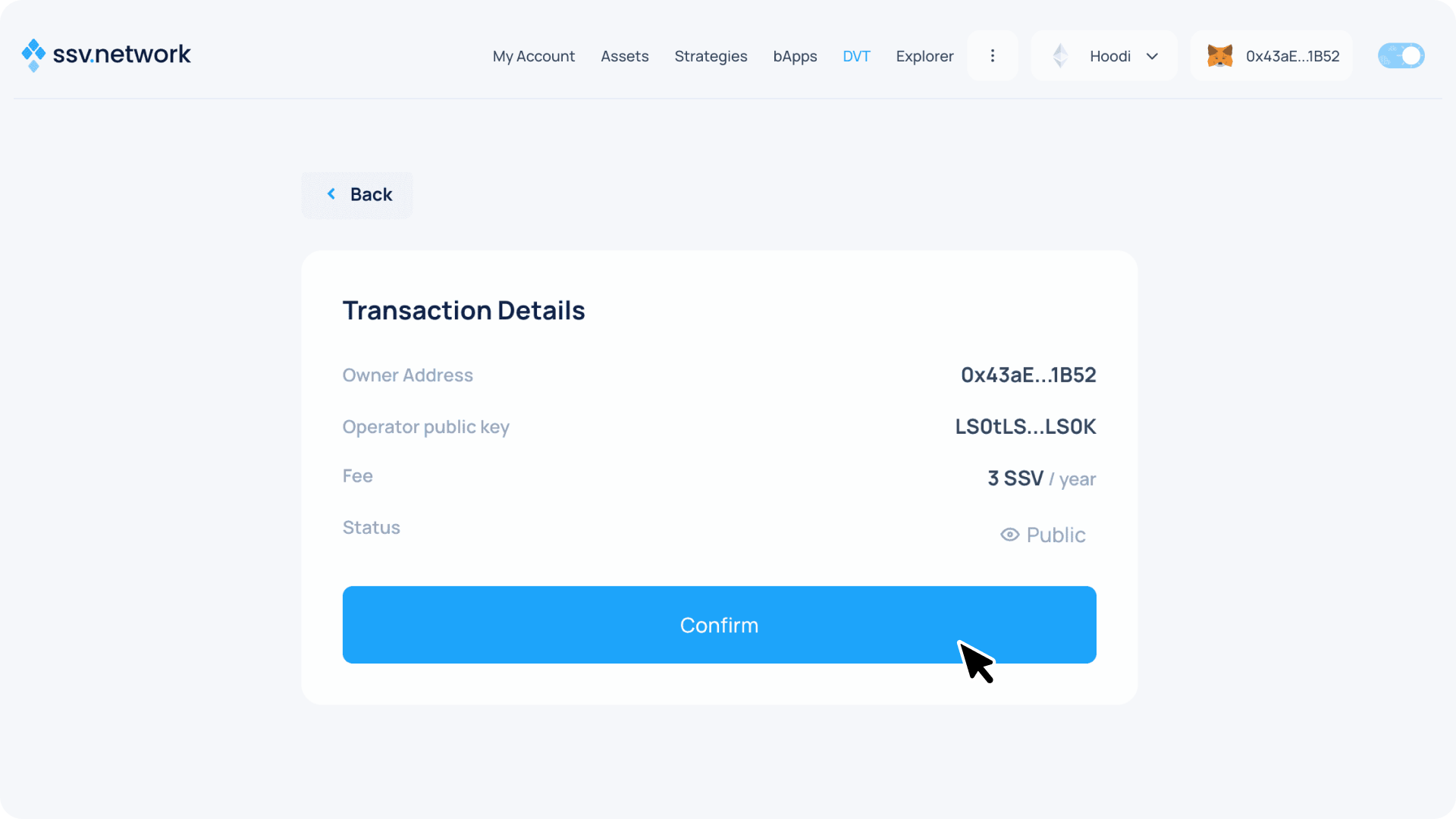
- Double-check everything and click Confirm
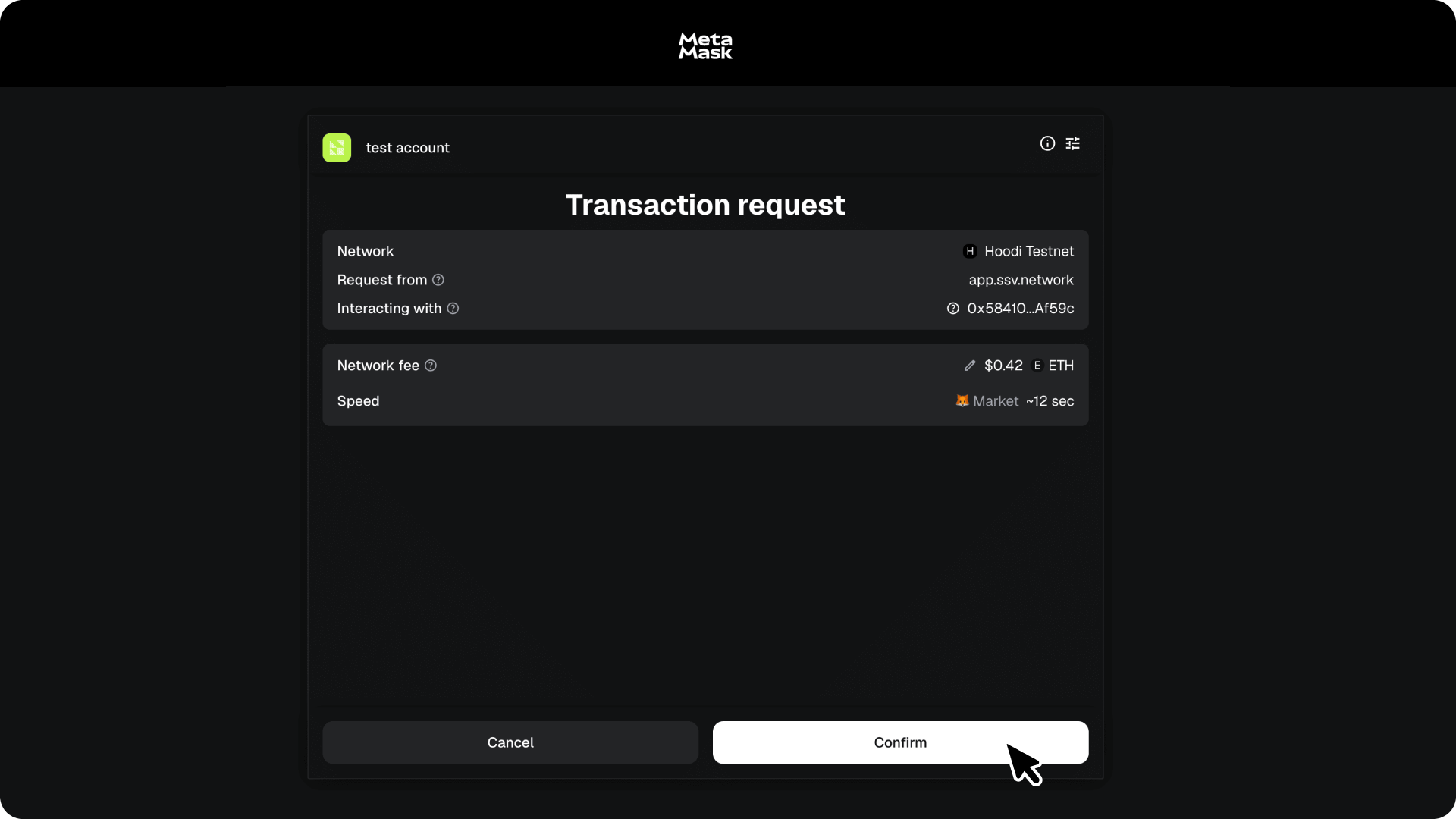
- Confirm the transaction and wait for it to be processed
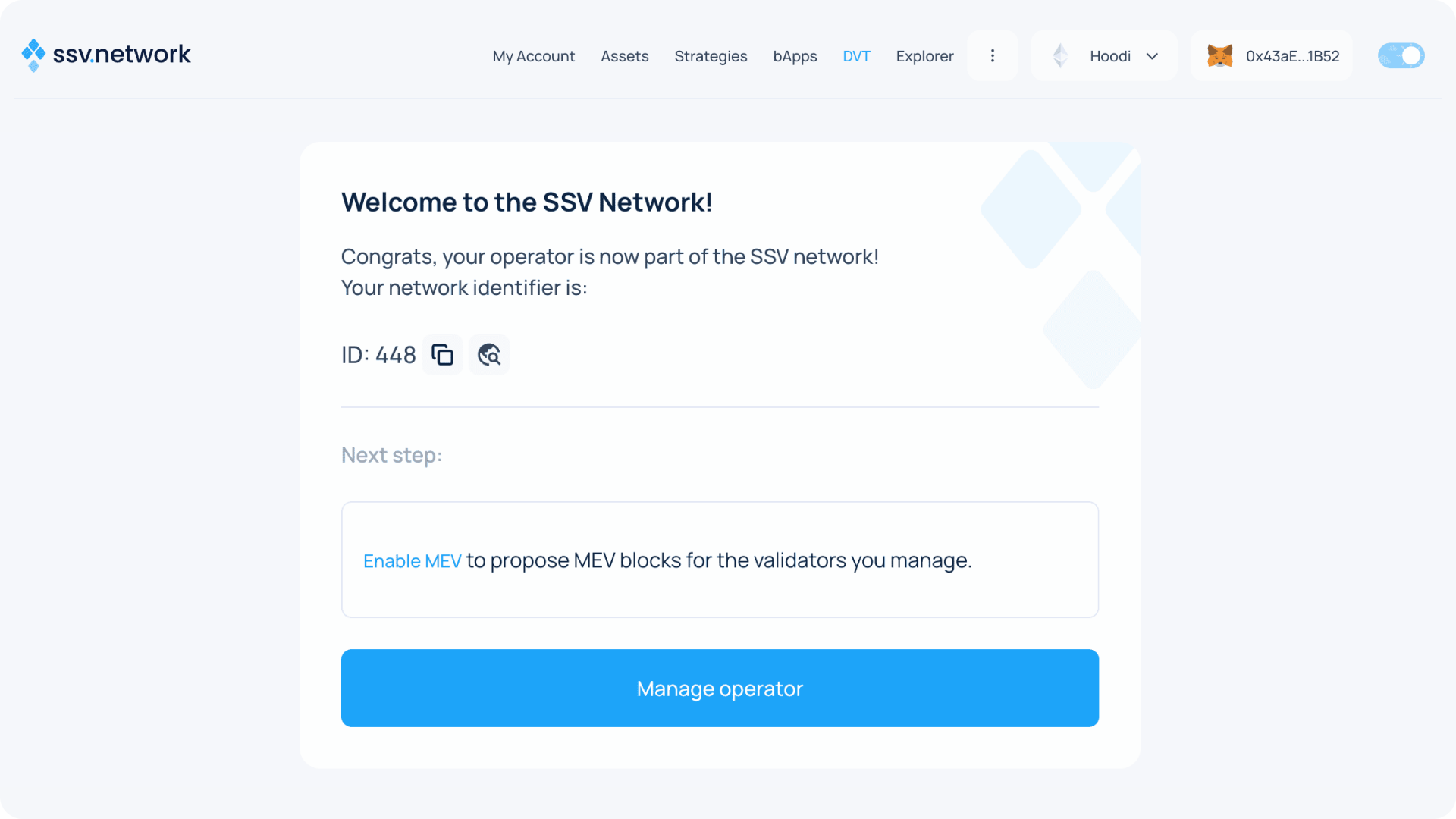
- Congratulations
 . Your operator is registered and ready to be added to a cluster — select it when you distribute your validators.
Operator Management
You can update your operator's settings — fee, metadata, and more — at any time. See operator management ↗.